LsOne POS Sales Orders
🆕 New Buttons on Your POS Screen
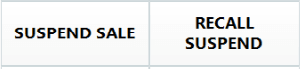
Your POS interface will now include two new buttons:
- Suspend Sale
- Recall Suspend
🛒 Creating a Sales Order Without Payment
Step-by-Step: Create the Initial Sales Order (without proceeding to the sales order screen)
- Add a Customer – Search for and select the appropriate customer.
- Add Products – Scan or enter the items being purchased.
💾 Saving the Sales Order (No Payment Taken)
If you’re not taking full payment immediately, and don't want to suspend the sale, jump onto the portal and create a quote. https://sales.lyndons.com.au (opens in a new tab)
⏸️ Suspend the Sale
Use this when the transaction needs to be paused (e.g., customer isn’t ready to pay yet).
- Places the transaction on temporary hold.
- Can be recalled from any POS in the store.
🔁 Suspending and Recalling a Transaction
⚠️ Important: This is not permanent storage. Suspended sales do not retain all order details.
If you need to preserve full order information (like delivery terms), use The Portal to create a quote instead.
🔄 Suspend the Sale
-
Create the Sales Order – Add the customer, products, and any required details.
-
Click “Suspend Sale” – Instead of finalizing the sale, click the Suspend Sale button on the right-hand side of the POS.
Your screen may look slightly different.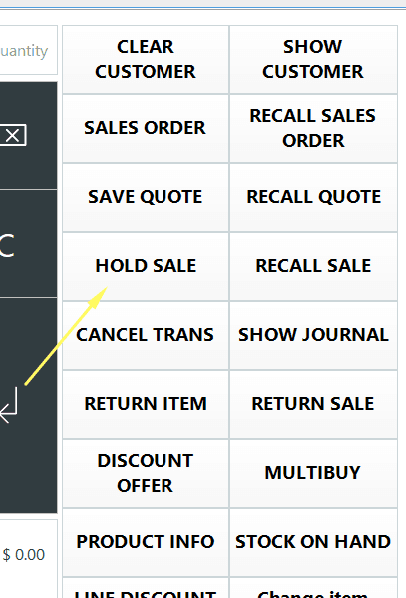
-
Confirmation Prompt – You’ll be asked to confirm if you want to suspend the sale.
Click “No” if you selected it by mistake.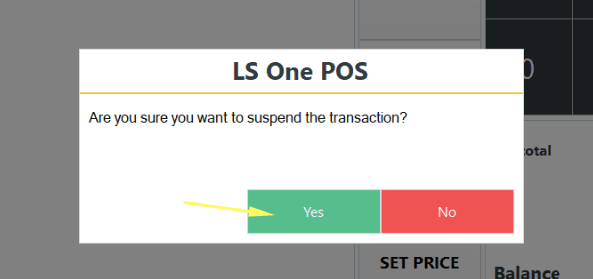
-
Add Any Extra Details (Optional) – If required, the system may prompt you to enter more information.
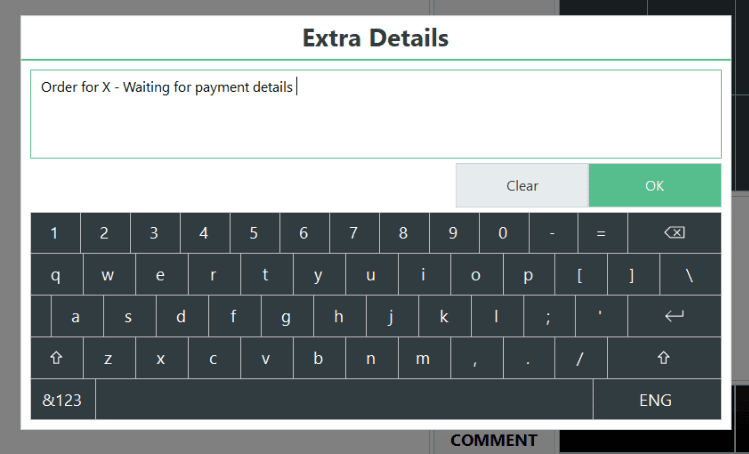
-
Sale is Now Suspended – The transaction is placed on hold and can be recalled later.
🔍 Recall a Suspended Sale
-
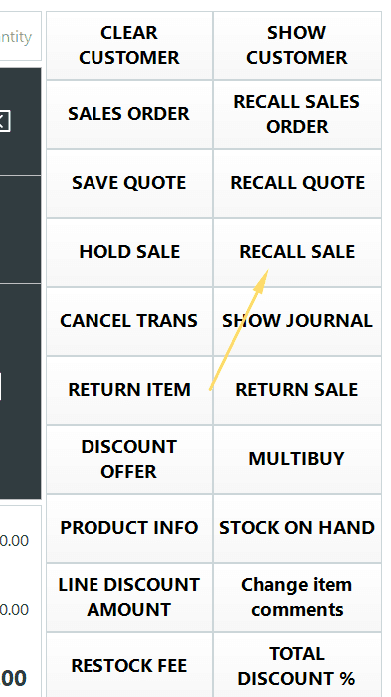
Click “Recall Sale” – On any POS terminal, select Recall Sale to view the suspended transactions.
-
View the List – You’ll see all currently suspended sales (including normal sales and sales orders).
Sort or search by date, amount, or any extra info entered.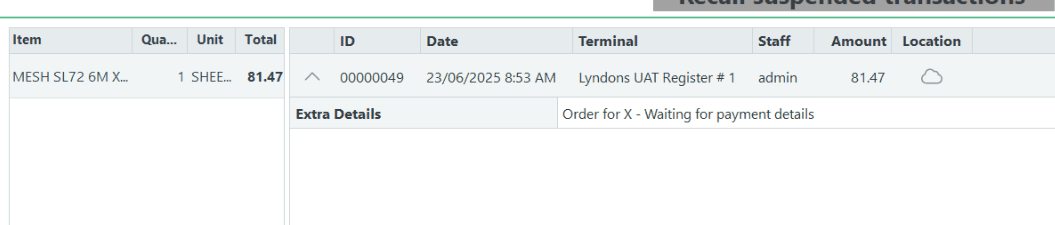
-
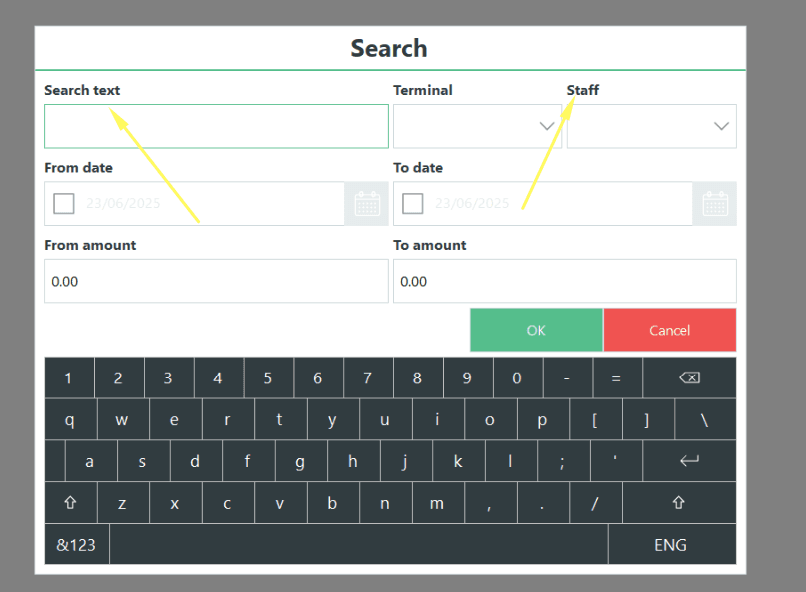
Search Options – Filter by staff, date, or custom text to find the transaction faster.
-
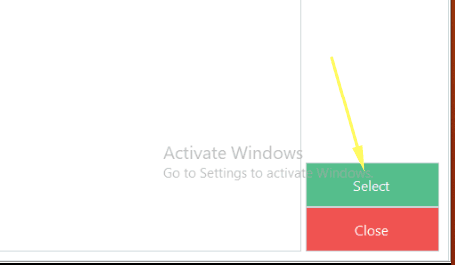
Select and Resume – Once you find the correct transaction, click it and then select “Select” at the bottom right.
⚠️ Note: Recalling a suspended sale removes it from the suspended list.
You must complete, convert, or re-suspend the sale to keep it active.
✅ Final Steps
- Once recalled, you’ll return to the LS Sale screen where you can:
- Complete the sale
- Cancel the transaction
- Convert it into a Sales Order